Guide
A teleprompter under your Mac's camera
To read on a video call without looking away, put the text as close to the camera as possible: at the top centre of the screen, in a narrow column, scrolling at about your speaking pace. macOS has no built-in teleprompter, so you either shrink a window to the top of the screen or use an app that scrolls the script just under the camera.
Why position matters
On a MacBook the camera sits in the notch, at the top centre of the display. The further your eyes travel from it, the more obviously you're reading. A line of text right under the lens keeps your gaze close enough that most people on the call can't tell. Text at the bottom of the screen, or in notes on a second display, looks like you're reading.
Apple's video effects on the Mac include Center Stage, Portrait mode, Studio Light and Presenter Overlay. None of them corrects eye contact, so the position of the text is what you can control.
Free ways to do it
- A narrow window at the top. Put your script in TextEdit or Notes, make the window narrow, and drag it right up under the camera. Scroll with the trackpad as you go. It works, but scrolling by hand while you talk is hard to keep steady.
- Keynote presenter notes. If you're presenting slides, Keynote's presenter display shows your notes with buttons to change the font size, and you can edit them while you present. Apple's guide doesn't describe automatic scrolling, so plan to scroll them yourself.
- Bullet points instead of a script. Five keywords on a sticky note taped just under the camera is the oldest trick there is, and it sounds more natural than reading.
How fast should it scroll?
Start at about 140 words a minute, do one run-through out loud, and adjust until the text arrives just before you need it. Short lines help: a column of five or six words means your eyes barely move from side to side. If you stumble, pause the scroll and pick up again rather than speeding up to catch the text.
Notchbird's Prompter
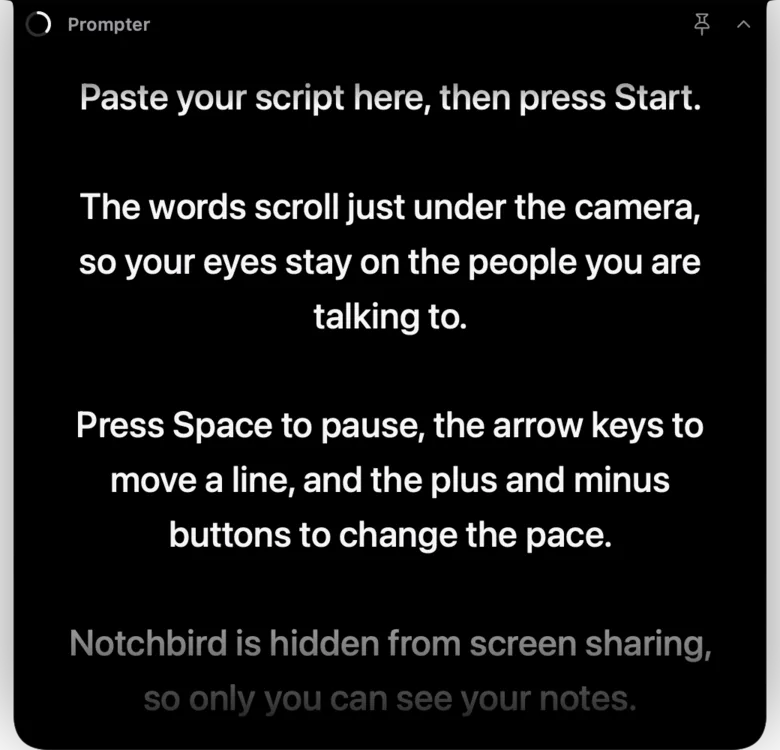
Notchbird's Prompter scrolls your script in a narrow column directly under the camera, from the notch. Paste or type the script, and it tells you the word count and how long it will take at your pace. Pace runs from 60 to 260 words a minute in steps of 10, starting at 140, and text size from 16 to 40 points. While it plays you can pause, jump back or forward two lines, and change speed.
Notchbird is hidden from screen sharing by default, so the script stays on your screen and off everyone else's, even if you share your whole display. The Prompter shows whether that's on before you start. For calls, the Audio section also has one button that mutes your microphone in every app.
Which to use
| Option | Text near the camera | Scrolls by itself | Hidden from your screen share |
|---|---|---|---|
| Narrow window at the top | Yes, if you place it well | No | Only if you share a different window |
| Keynote presenter notes | On the presenter display | Not described by Apple | If you share only the slide display |
| Notchbird Prompter | Directly under the camera | Yes, 60 to 260 wpm | Yes, by default |
Related: keep notifications and apps out of a screen share, or see all guides.
Sources
- Apple: use video conferencing features on your Mac
- Apple: video effects on Mac
- Apple: Keynote presenter display
Common questions
Does macOS have a built-in teleprompter?
No. You can place a narrow text window under the camera and scroll it yourself, use Keynote's presenter notes when presenting slides, or use an app such as Notchbird's Prompter.
Does my Mac correct eye contact on video calls?
Apple's Mac video effects include Center Stage, Portrait mode, Studio Light and Presenter Overlay, but no eye-contact correction, so keeping text right under the camera is what helps.
Will people on the call see my teleprompter script?
Not with Notchbird, which is hidden from screen sharing by default. With a normal window, share a single window or app instead of your entire screen.
Notchbird's Prompter scrolls your script under the camera and stays out of your screen share.
Try Notchbird free